Sub Processes
Subprocesses can used for hierarchical structuring of processes, realisation of complex activities or recycling of processes. In the first case it’s about creating different layers of abstraction (stepwise refinement), whereas in the second case you are only trying to hide unnecessary implementation details, distracting from the understanding of the process, i.e. you encapsulate them. In the third case you use subprocesses just like activity templates (or libraries in programming) to use them again and again.
AristaFlow makes no difference between subprocesses and activity templates, therefor every activity can be either an elementary activity or a subprocess, and you drag and drop them just like activities and have a similar wizard.
Because subprocesses are encapsulated, there is no direct access to the data of father / child processes. Data gets exchanged exclusively by parameters. The start nodes receives the input parameters and the end node exports the output data.
You see our pizza process model again and after this chapter yours should also have the subprocess symbol at the Accept order node, next to the staff assignment symbol.
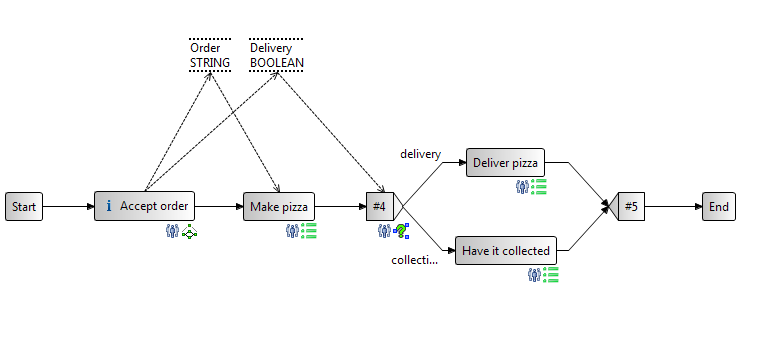
We want to model the “Accept order” step in more detail, so we have create another template and model it like in the figure below.
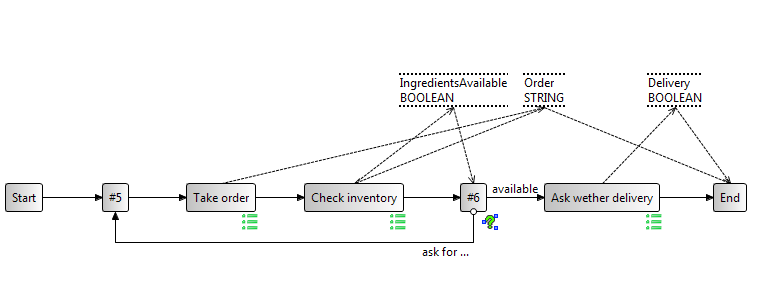
For the loop, which we haven’t seen in the tutorial yet, just proceed like with an XOR node (choose Loop in the change operations menu, drag XOR predicate onto second loop node and fill it out accordingly).
You might also notice two things in the subprocess: It has the same two data elements as the father process, but they are connected by a read edge to the end node and there is a new data element called “IngredientsAvailable” which only exists in the subprocess.
It’s only because the data elements are connected to the end node, that the respective information can get into the father process. After we modelled and saved the subprocess, we drag it from the “Local Projects” view onto the “Accept order” node of the pizza template. Following window might occur:
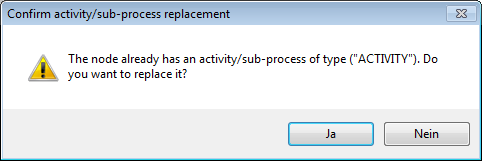
And that is by the way the method how you can try again if you messed up. Just drag the activity or subprocess onto the node again if you want to correct something that isn’t accessible through other means. You might for example have difficulty changing the parameters once they are set in a sub process.
In our example we don’t have input for our subprocess from a father data element, so there is no data element connection from the start node of the subprocess. But if you like you can create a dummy just to test it. You can also play around with the templates and ask for the delivery address for example and discuss solutions with colleagues. But for now we’ll keep it short and simple.
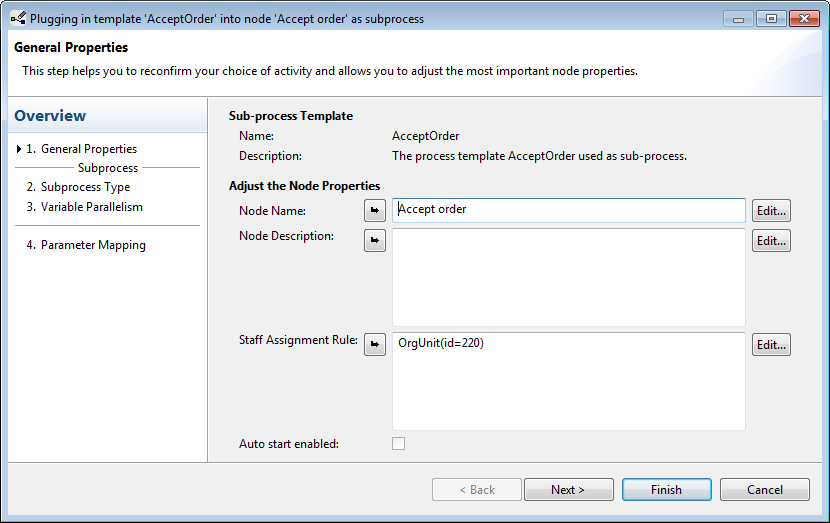
The first page of the wizard looks familiar. Note, how the system already assigned the staff.
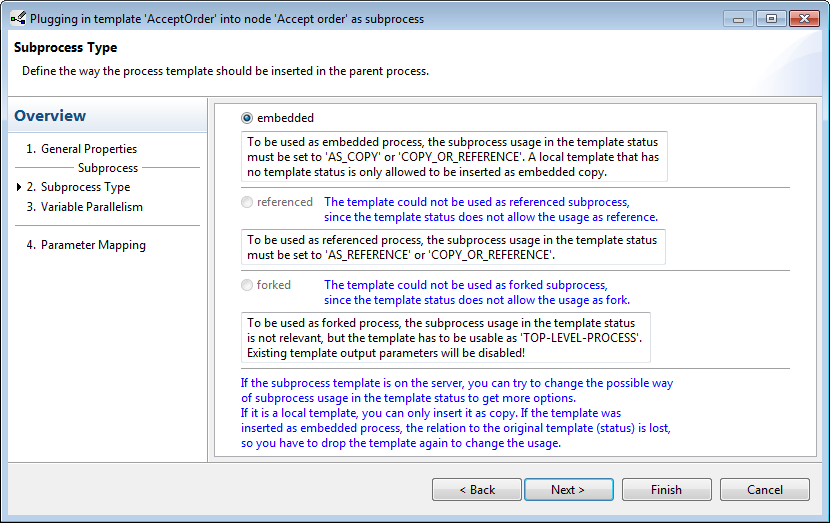
On the next page we see three options on how to classify our subprocess of which two are disabled. That’s because we stored our process only in the local projects, but have not uploaded it to the server yet. So our only option is to embed our process directly in our father process.
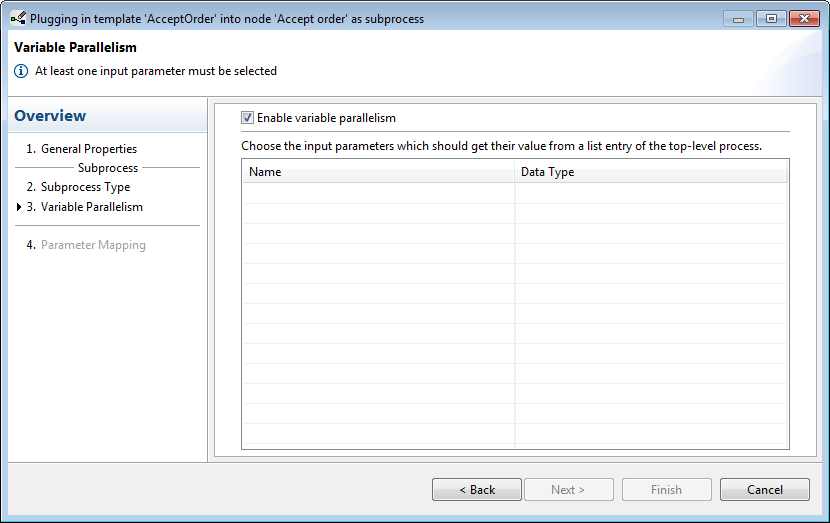
The next page is uninteresting for now, we click next.
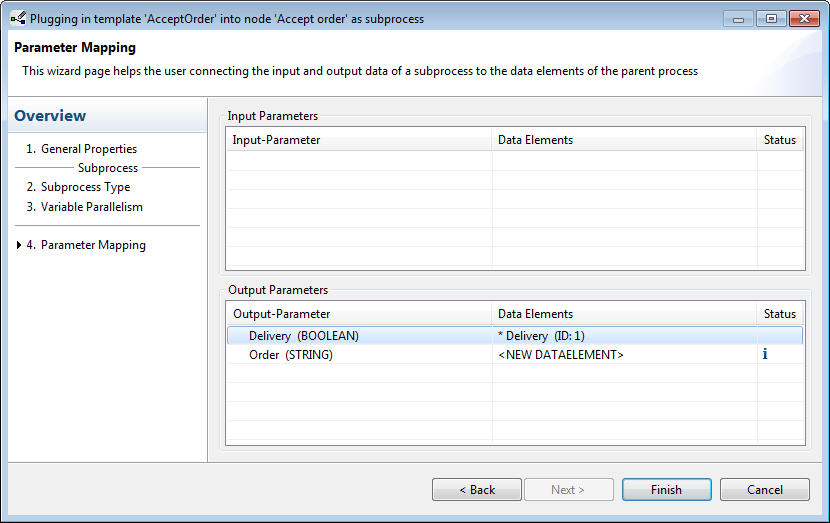
On the last page we see a summary of the parameters again. AristaFlow might not have matched the parameters correctly, so check if it creates new data elements or connects them to our already existing ones. We need to connect the outgoing parameters to the ones that already exist in the father process, the ones with the *.
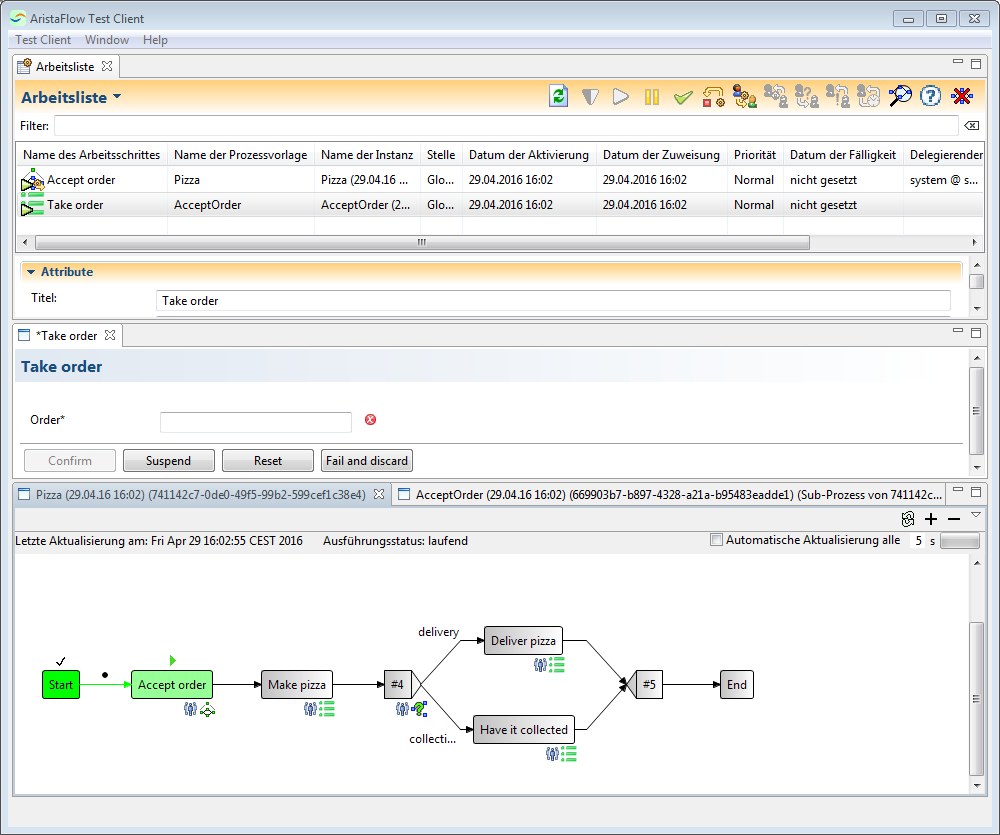
When we run the test client we see that the processes are opened separately.
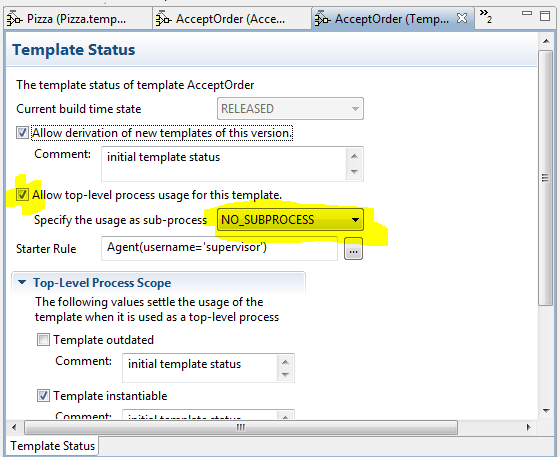
After uploading the subprocess to the server we can adjust some properties at the template status. We can check if the template is allowed to be started as a top level template and / or if it should be used as a subprocess in the dropdown list.