Deployment and Execution
Deployment of the Request for Time off process
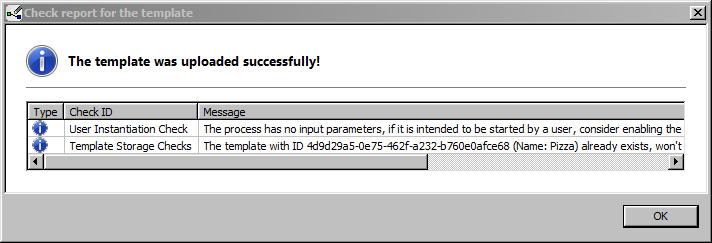
To run the process in a productive environment and actually make use of it, we need to upload it to the server, i.e. we have to check in the template for the server to “see” it. For that we simply drag and drop the template from the “Local Projects” view down to the TemplateManagerView at the bottom of the PTE. But first we have to make sure that every process step has an activity and a staff assignment rule assigned. Before the process is deployed it will run through several more correctness checks and inform you wether something goes wrong or not.
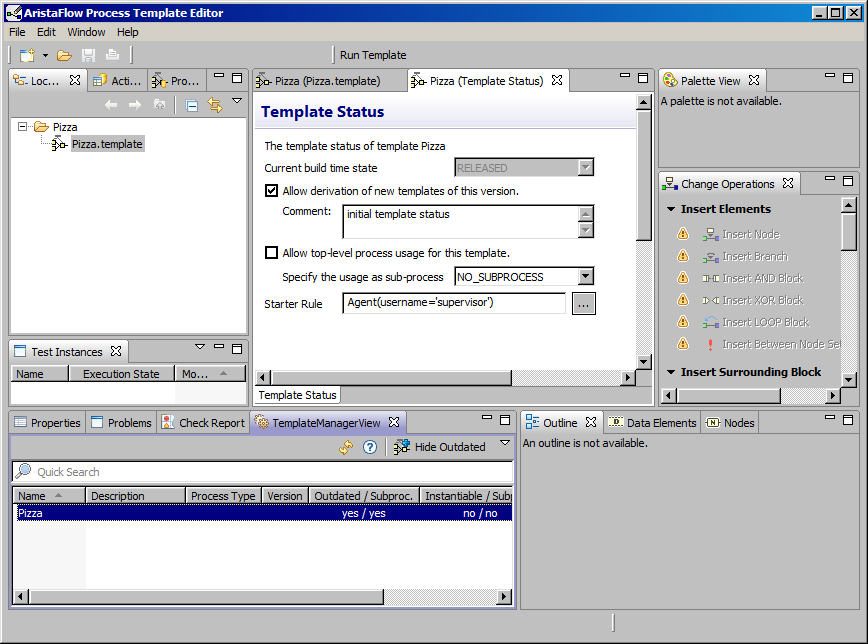
Before we run the template we define some properties first, like who is allowed to start an instance in the first place. For this right click on the entry in the TemplateManagerView and select “Open Template Status”. There you’ll find the “Starter rule” and instead of just the supervisor you can add anything within in the OrdModel. You can also start the wizard. If we just enter Agent() everybody will be able to start the process. That’s it.
Process Execution
To execute our process start the AristaFlow Client. Check out the “Relevant Tools” chapter to learn more about it. Log in with either supervisor / password to start the process or directly with DeTina / password if you allowed her or every other agent to start a process. Go to the “Instantiable Templates” and start the pizza process. Only then it will appear in the “Pending Tasks” section. Click through the process
If you have started the server explicitly you will also need to start the automaticclient explicitly if you used it. Go to “AristaFlow BPM Suite”, “Console”, “Automatic Client wit console” in the start menu or “…\AutomaticClient\bin\AutomaticClient.bat” in the installation folder. It will act like a standard client but executes its steps automatically, like XOR splits for example.
When starting an activity you will normally have several options available what to do with it. You can confirm it which successfully exits the activity. You can suspend it, which stores the input that has already been entered and pauses the activity. You can then return later and finish it. Or you can abort the activity which leads to a fail.
After “Accepting Order” there is the process step “Make pizza” which is done by somebody else. So you will need to start another client and log in as DeToni / password.
When the process finishes it will be removed from the worklists of the employees.