Running the Test Client
If AristaFlow ensures Correctness by Construction, why do we need to test the process ourselves? The answer is to ensure semantical correctness - does the process what we thought it would do, what we intended? This is possible at any time during modelling. It contrast to a productive environment we don’t need to have activities or staff assigned. So we start the process in test mode and can play through every path that we like. This comes handy when discussing processes with your partner / customer in early stages.
Difference between Client and Test Client
For more information on the differences between the TestClient and the standard client please check out the subchapter in the “Relevant Tools” section.
Usually you will want to start the TestClient conveniently from the PTE. Before you can start it for the first time, though, we have to configure the connection between the two. Go to “Window”, “Preferences..” in the PTE, select “Test Client Connection”, browse to the AristaFlowTestClient.exe and finish with “OK”. Of course you can also start the TestClient from the start menu like every other tool of the suite, too.
To start testing a process make sure the desired template is opened, then click “Run TestClient” at the top.
Our Pizza process now lies in the worklist, waiting to be started. With a double click on the entry we do just that. The start node from the template is only for structuring, so we can right start filling out the form, i.e. the order and whether the pizza shall be delivered or not. Click through the process.
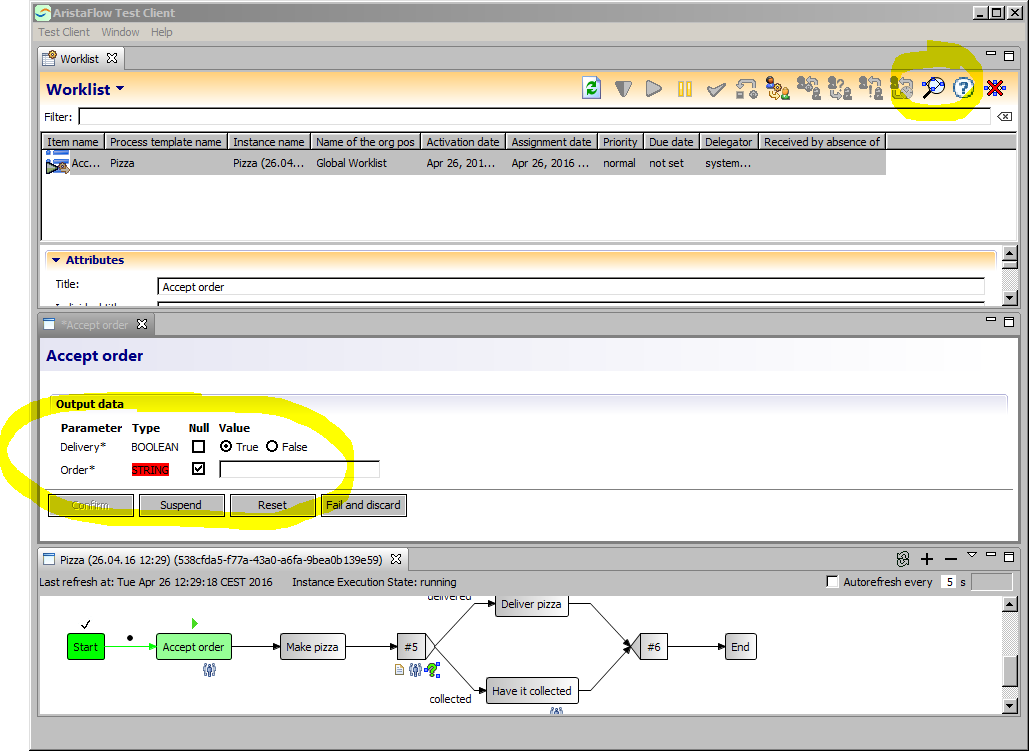
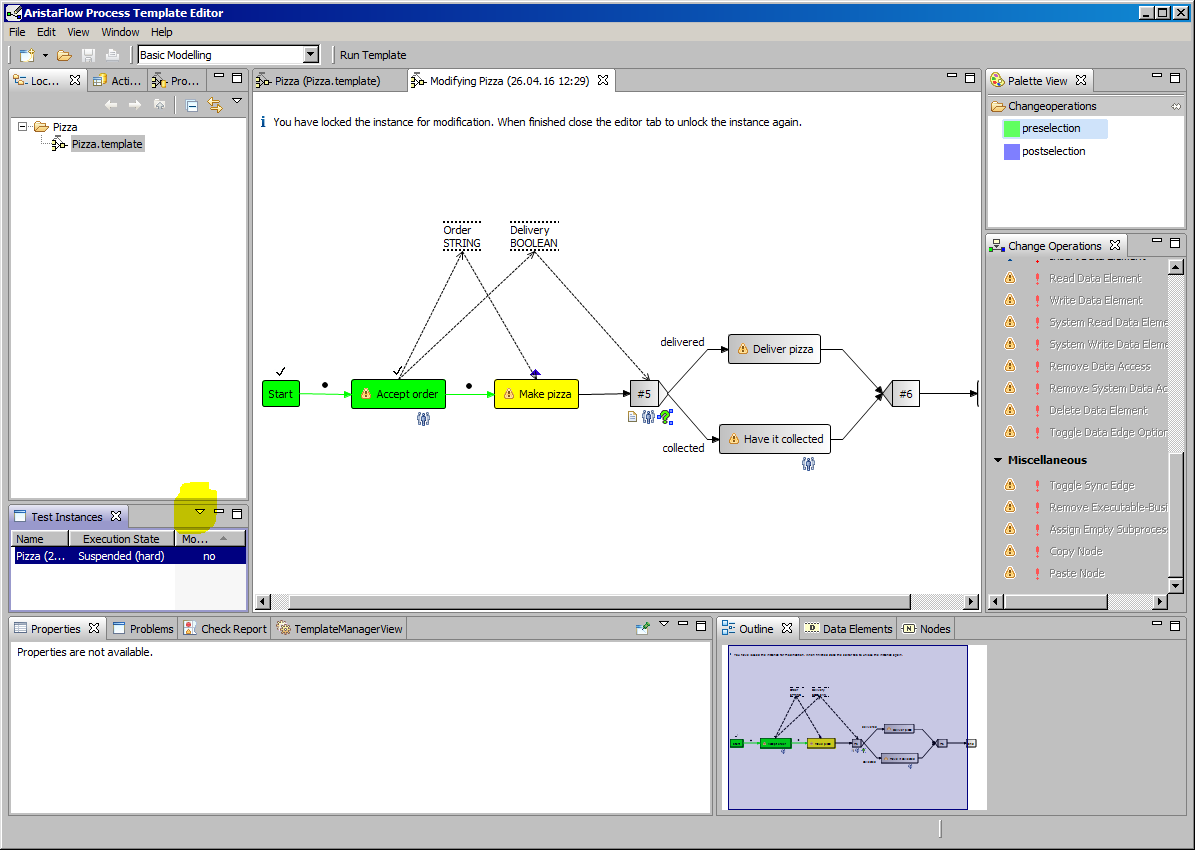
If you like you can click the magnifier icon in the top bar for real time monitoring of the process graph. If you detect a semantical error in the activity you could now reset the activity, switch back to the PTE and choose “Ad-hoc modify” in the menu (see figure below) to change the running instance, i.e. the changes will not be saved for future executions of that process, unless we select “Take Over Modifications”.