Clients
TestClient
You will most probably come in contact with the TestClient as a client first. So we’ll start with that and explain later what is different in the standard client. With the TestClient it is possible to test the modelled process from very early stages on. The process just has to be structurally correct but can lack assigned applications and workers. AristaFlow will create according forms automatically, so one can see the input parameters and type in the output parameters of that activity by hand. Regardless of the employee assignment you will have one working list where all process steps and activities will be shown.
GUI orientation
You have several windows rowed underneath each other even though you might only see one when you open the TestClient. The very top row holds the worklist with the available instances of course and also various options what to do with them. If you click on an entry another window will show up and tell you about the attributes of that process (step). If you double click on the entry the according process step will be started. In this case it’s a little user form. If you don’t assigned this user form activity template to the process step, a generated form will be used instead, which basically does the same. In the TestClient that doesn’t matter.
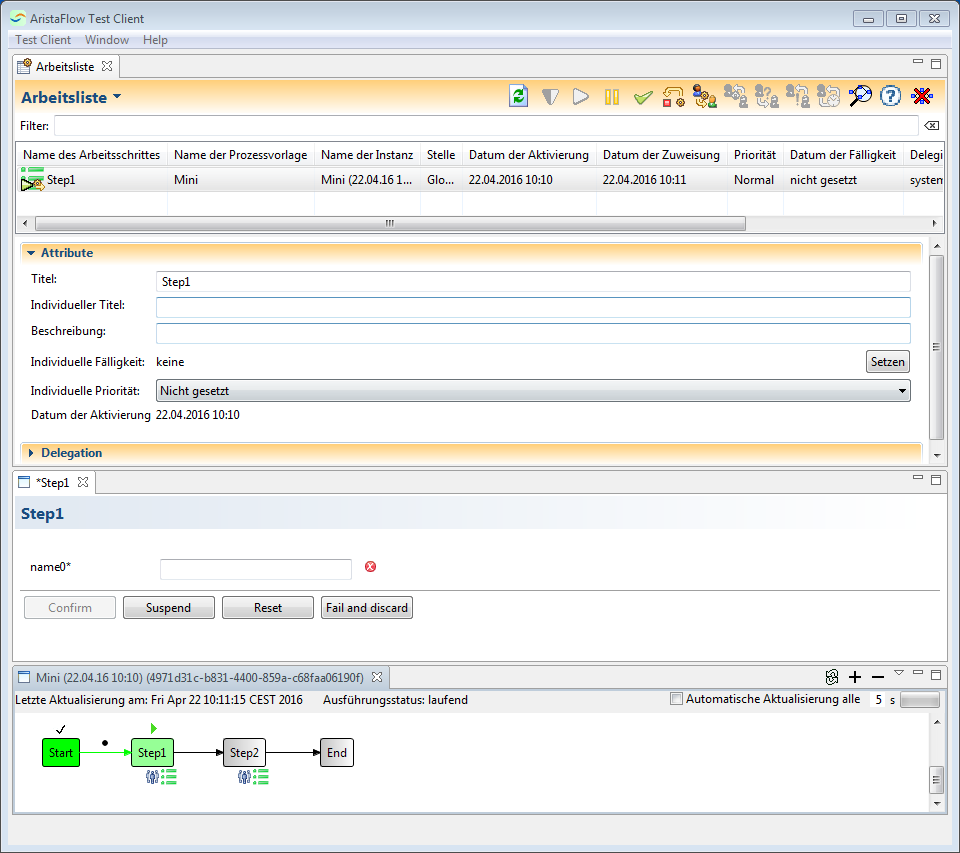
The user form in this case comes with several options to quit the activity. Each of them leads to a different status of the activity.
- Confirm: ends the process step
- Suspend: stores the input and allows for later continuation
- Reset: discards the entered data and makes the process step available again
- Fail and discard: let’s the process fail
If a field is required you will be noticed and you can’t confirm the the process until all the obligate output parameters are given.
To get the information at the bottom, where you can find the process instance as a graph with its process steps and their states, just click on the magnifier symbol at the top bar (third icon from the right). Or hover your mouse over the icons and get additional information about the buttons.
Standard Client
The standard client is work place for the respective employee. It comprises the working list, where all of his upcoming tasks are listed. If he has the necessary rights he will be able to start new process instances from here, too. The client also offers functions like resubmission, delegation and inquiry to request help of co-workers. Furthermore one can display the graphic representation of the corresponding process instance for ones tasks.
GUI orientation
On top there is a drop down menu to pick the position from the OrgModel which the logged in employee currently occupies. Next to it you see several options like setting absence.
On the left you see a menu (that you can also hide) that holds several entries:
- Tasks
- Activity templates ready to start
- Done tasks
- Homepage
- Current tasks
Menu Details:
Here you find the worklist, which lists all the process steps of currently running process instances that are available, suspended, assigned or running and fit the logged in employee and his chosen position. It’s like in the TestClient.
Before you can work on an process step the corresponding process instance has to be started. Those are contained in a separate list. It lists all the process templates that can be started with the currently occupied position at that moment. For example only your supervisor can start a process for you.
Tasks that have been finished.
An almost blank page you see when starting the standard client.
Compare the figure below. It resembles the part of the TestClient without all the other windows around it, so the employee can focus on the task / the form in this case.
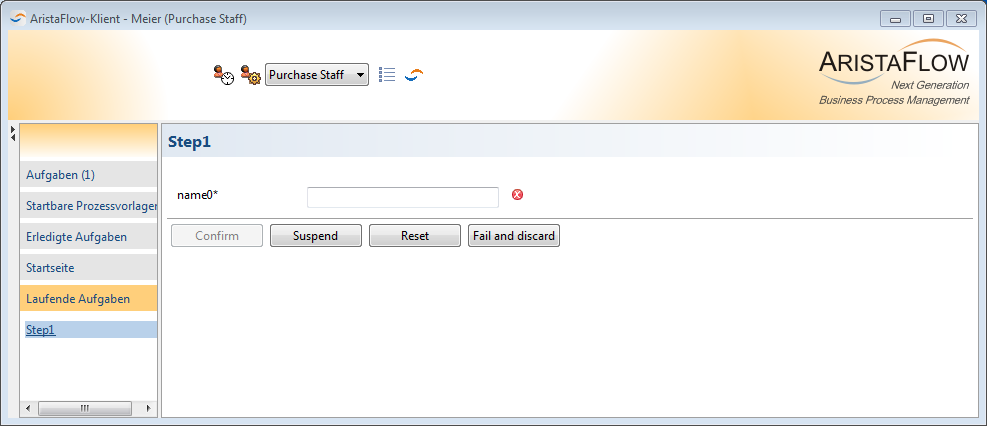
The worklist can also be adapted to the web. Furthermore worklist entries can be delegated, i.e. somebody else will do the job. You can add a comment to the delegation.
AutomaticClient
From the perspective of the server the automaticClient is the same as the standard client. It also has a worklist. But everything gets immediately executed automatically, i.e. without user interaction. One can map “automaticclient” from the OrgModel to an activity to have it executed automatically. This is practical for split nodes for example.